Nearly every ticket that reaches our desk with the words “your service keeps buffering” turns out to be something between the router and the Fire TV Stick. That is not us dodging blame — it is what the numbers say. Across a year of support conversations, roughly four out of five Firestick buffering complaints were resolved without touching the subscription at all.
This guide is the internal checklist we work through, published in full. It is ordered by how often each step ends the conversation, so if you only have ten minutes, start at the top and stop when the picture stabilises. Every fix works the same whether you use TiviMate or IPTV Smarters Pro, and most of them apply to any Android TV box, not just the Firestick.
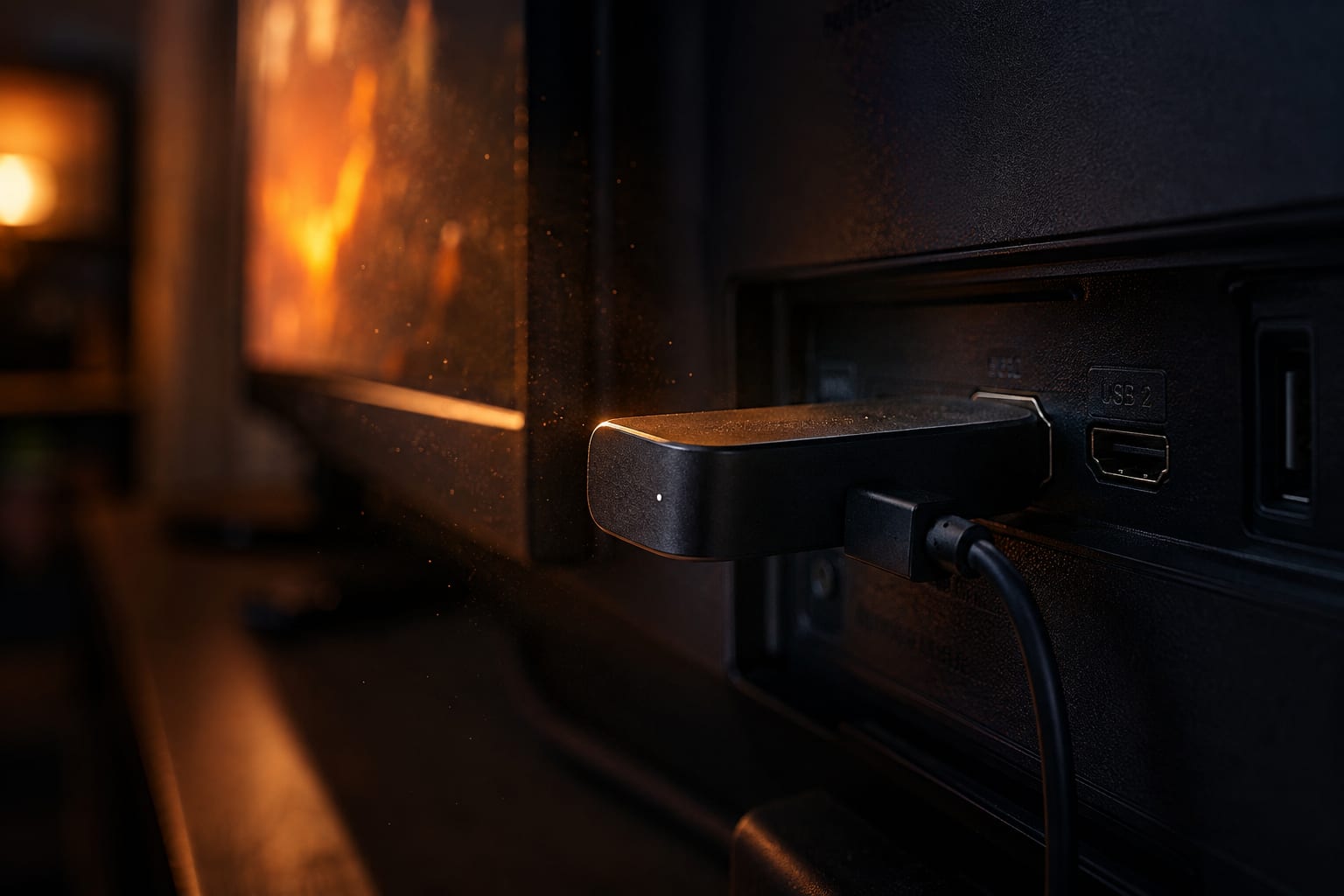
Why the Firestick is usually the bottleneck
A Fire TV Stick is a remarkable piece of value engineering: a full Android device the size of a chocolate bar. That size comes at a cost. The antenna is small and sits behind a metal television that reflects Wi-Fi. The processor is modest. The base models ship with 1 GB of RAM, the 4K Max with 2 GB, and the operating system claims a good chunk of that before your player even opens.
IPTV is unusually demanding on this hardware. Unlike Netflix, which uses adaptive bitrate streaming to silently drop your quality when the connection dips, most IPTV streams are fixed-bitrate. There is no graceful degradation. If a 4K sports feed running at 20 Mbps meets a connection that momentarily delivers 15 Mbps, the buffer drains and the picture freezes. The stream does not politely become 1080p — it stops.
That single difference explains most of what follows. Everything below is about giving the stick a wider, steadier pipe and more room to buffer.
Two-minute triage: is it you, the stick, or the stream?
Before changing settings, run this. It saves an hour of guessing.
- Open a different channel from a different country — for example, swap a UK sports channel for a US news channel. If the second one is perfect, the issue is that specific stream, not your setup.
- Open the same channel on your phone over the same Wi-Fi. Smooth on the phone but stuttering on the Firestick points squarely at the stick.
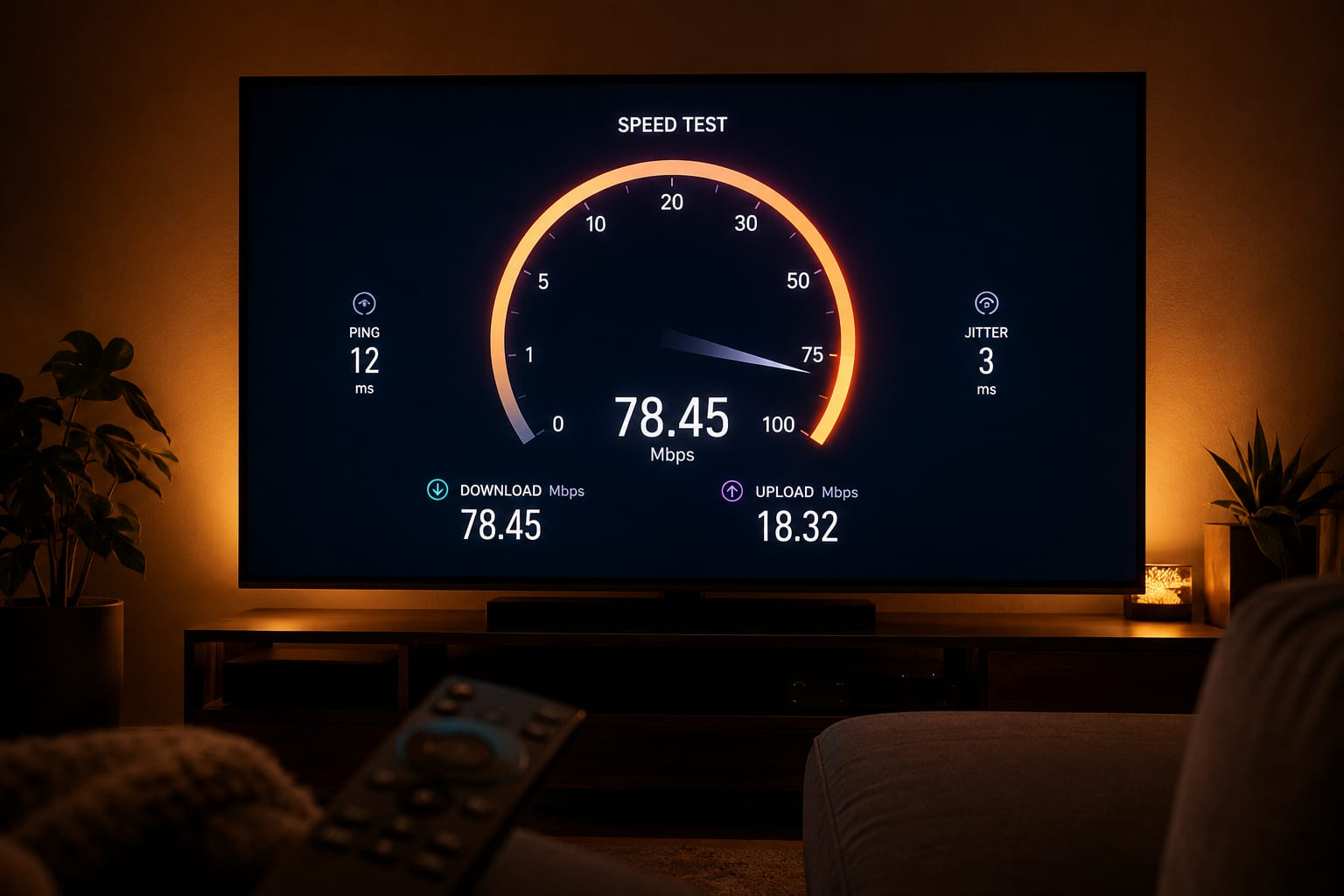
- Run a speed test on the Firestick itself, not your laptop. Install the Ookla Speedtest app for Fire TV or open fast.com in the Silk browser. The number you get there is the only one that matters.
Write down your triage result
If all channels stutter and the Firestick speed test is below 25 Mbps, work through fixes 2, 3 and 9. If only some channels stutter and your speed is fine, skip to fixes 5, 7 and 11. Knowing which branch you are on saves you from changing ten settings at once and learning nothing.
The eleven fixes, in order
Clear the cache and kill background apps
2 minAndroid TV keeps every app you have ever opened warm in memory. On a 1 GB stick that is fatal. Go to Settings → Applications → Manage Installed Applications, select your IPTV player, and choose Clear cache. Do not choose Clear data — that deletes your playlist and favourites.
Then do the same for the Silk browser, the Amazon Photos app and anything else you never use. Restart the stick properly afterwards by holding Select + Play/Pause for five seconds, or by pulling the power for thirty seconds. A reboot from the menu does not always release memory.
Repeat this monthly. Cache creep is the reason a stick that was flawless in January starts stuttering in June with nothing else changed.
Move to 5 GHz Wi-Fi
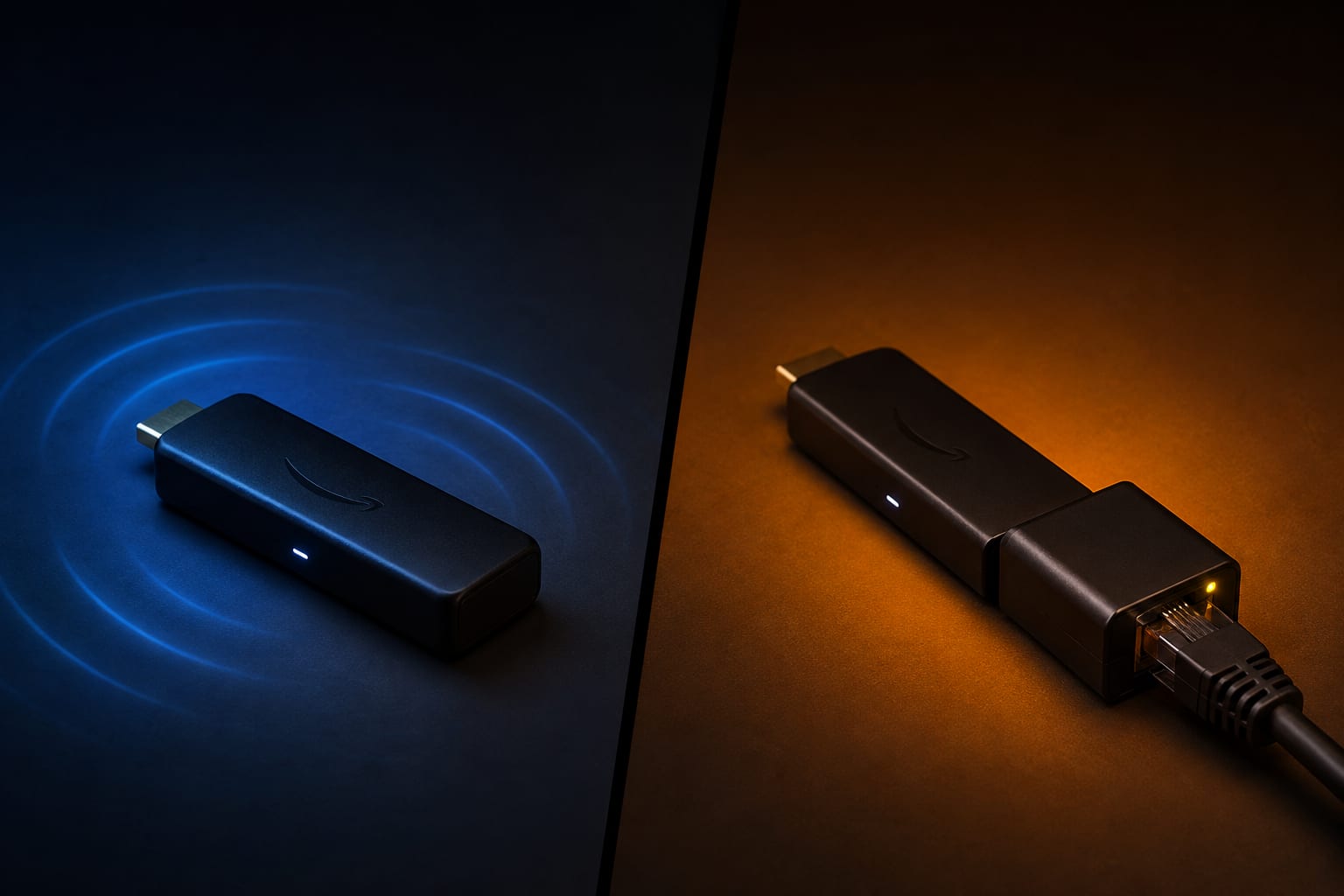
3 minThe 2.4 GHz band travels further through walls but is a traffic jam: microwaves, baby monitors, Bluetooth and every neighbour's router share it. The 5 GHz band is far cleaner and much faster over short distances — which is exactly the distance between your router and your living room.
Go to Settings → Network and check which network you are joined to. If your router broadcasts one combined name, log into the router and split the bands into two names, e.g. HomeWiFi and HomeWiFi-5G, then join the 5 GHz one explicitly. Band steering left to the router's judgement will park a stationary Firestick on 2.4 GHz and leave it there.
Plug in an ethernet adapter
5 minThis is the fix that ends the most tickets permanently. The official Amazon Ethernet Adapter replaces the power supply and adds an RJ45 port. Wired gives you a stable, predictable throughput that does not care about your neighbours, your microwave or where the TV sits.
After plugging it in, confirm it took effect: Settings → Network should show an ethernet entry rather than a Wi-Fi network. Some users leave Wi-Fi enabled and the stick silently keeps using it. Turn Wi-Fi off once ethernet is confirmed working.
If running a cable across the room is impossible, a pair of powerline adapters is the next best thing and still beats 2.4 GHz comfortably in most homes.
Turn off Fire TV background data and auto-updates
2 minFire OS downloads app updates, refreshes the home screen's video previews and syncs usage data while you watch. On a constrained connection those background transfers compete directly with your stream.
In Settings → Preferences → Featured Content, disable both Allow Video Autoplay and Allow Audio Autoplay. In Settings → Applications → Appstore, set Automatic Updates to off and update manually when you are not watching.
Raise the player's buffer
2 minEvery IPTV player keeps a few seconds of video in memory so brief network dips do not reach your screen. The default is tuned for fast channel switching, not stability. Raising it is the single most effective software change you can make.
In TiviMate: Settings → Playback → Buffer size, move it up one or two steps. In IPTV Smarters Pro, look for a buffer or player-timeout setting under player settings, and switch the player engine if the option exists.
You are trading roughly one to three extra seconds when changing channels for a picture that holds through a network hiccup. For sport, that trade is always worth it.
Switch the decoder: hardware, software or auto
2 minVideo decoding can happen on the stick's dedicated video chip (hardware) or on its general processor (software). Hardware is more efficient and should be the default, but some streams — particularly older channels encoded with unusual settings — decode more reliably in software.
If a specific channel stutters while everything else is fine, open that channel and switch the decoder for it. In TiviMate this lives under playback settings and can be set per playlist. Try hardware first, then hardware (auto), then software. Software decoding costs more CPU, so use it only for the channels that need it.
Drop to the backup or lower-quality stream
1 minGood providers publish the same channel at several bitrates — a 4K feed, an FHD feed and sometimes an HD backup. If your connection genuinely cannot sustain 20 Mbps, no setting will fix that; the answer is to watch the FHD version, which typically needs 6 to 8 Mbps and looks close to identical on a 55-inch screen from three metres away.
Our lineup groups these together so the alternatives sit next to each other in the guide — you can see how the categories are organised on the channel list page.
Change your DNS
4 minYour ISP's DNS resolver is often slow and occasionally interferes with streaming domains. Switching to a public resolver frequently smooths out the pauses that happen when a channel first loads.
The Firestick does not expose DNS settings natively, so change it at the router — which has the pleasant side effect of applying to every device in the house. Use Cloudflare's 1.1.1.1 or Google Public DNS (8.8.8.8 and 8.8.4.4). Reboot the router afterwards.
Test for ISP throttling
10 minSome providers shape or throttle traffic they identify as video, especially on cheaper packages and mobile broadband. The symptom is distinctive: general browsing and speed tests look perfect, but every video stream stutters, and it gets worse in the evening.
To test, watch a problem channel for five minutes with a VPN switched on. If the stutter disappears with the VPN and returns without it, throttling is the cause and the VPN is your fix. If the VPN makes no difference or makes it worse, throttling is not your problem — switch the VPN off, because it adds latency for nothing.
Regulators publish real-world data on this. In the UK, Ofcom's broadband performance reports show how far evening speeds diverge from advertised ones.
Deal with overheating
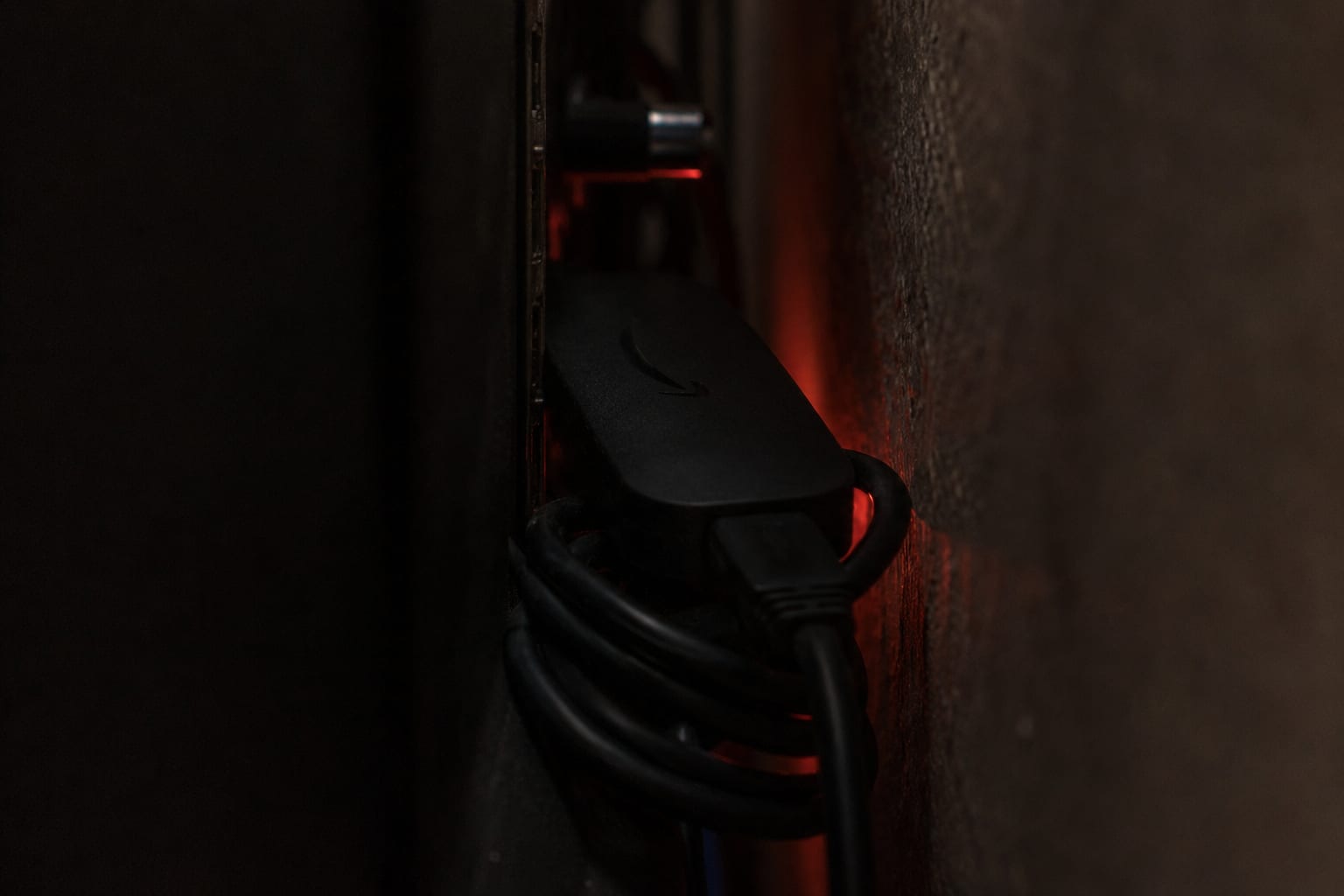
3 minA Firestick tucked into a recess behind a wall-mounted TV cooks itself. When the SoC gets hot it throttles, and a throttled stick cannot decode a high-bitrate stream. The tell-tale sign is buffering that appears only after 30 to 60 minutes of watching and clears after the stick has been unplugged for a while.
Use the short HDMI extender that came in the box so the stick hangs in open air rather than pressing against the TV's back panel. If your TV's USB port powers the stick, move it to the mains adapter instead — underpowering causes the same symptoms.
When it really is the provider
—Sometimes it is us, or whoever your provider is. The honest signature of a server-side problem looks like this: buffering on one specific channel or channel group while everything else is stable, at the same time every day, on every device in your home including your phone on mobile data.
If that matches, do not spend another evening changing settings. Send your provider the exact channel name, the time it happened and your country, and ask them to move your line to a different server node. On our side that takes a couple of minutes — details on the FAQ page, or message the support desk directly.
Symptom-to-cause table
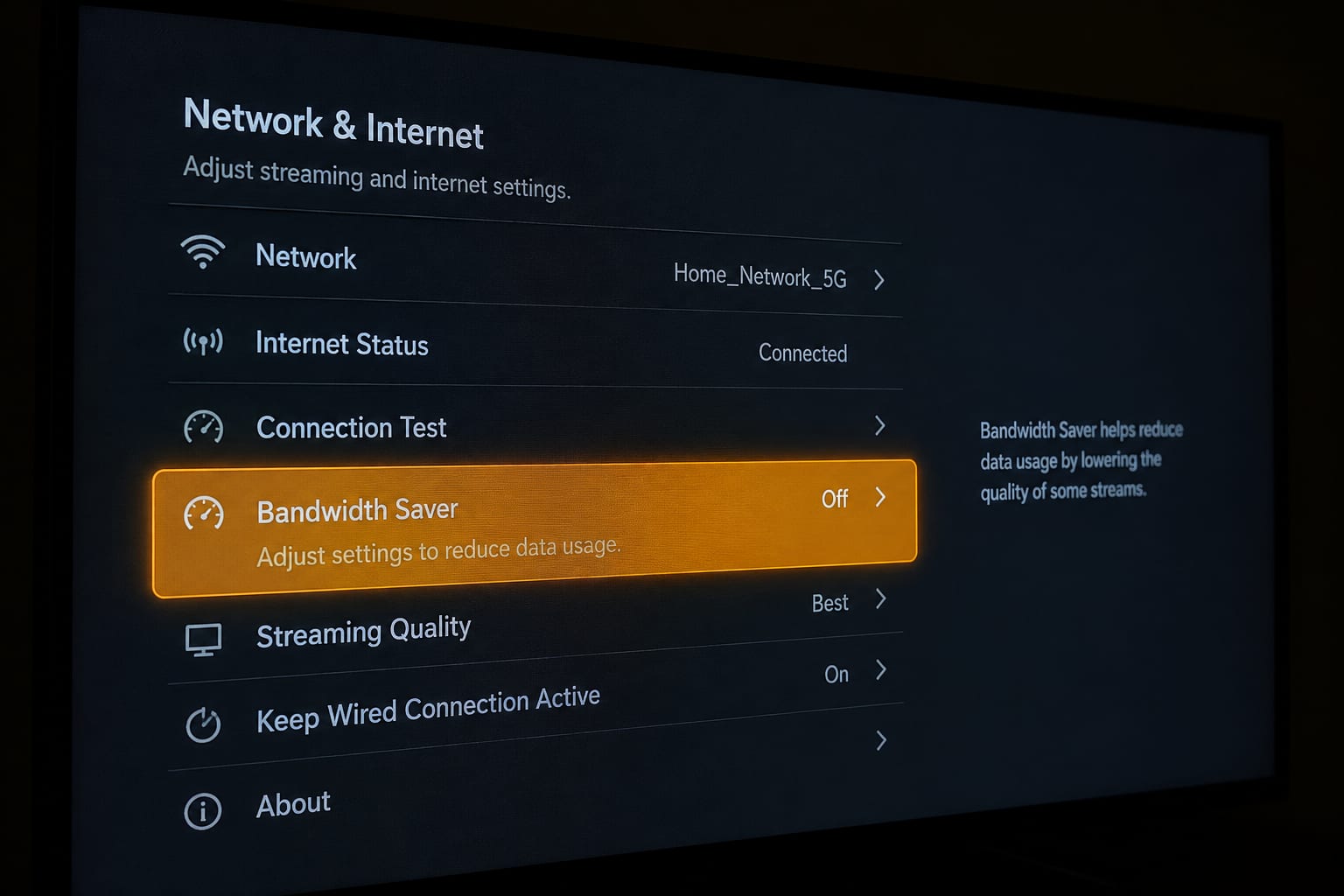
When a customer describes the pattern accurately, the cause is usually obvious. Find your row:
| What you see | Most likely cause | Go to |
|---|---|---|
| Every channel stutters, all day | Connection or hardware | Fixes 1, 2, 3 |
| Fine at noon, unwatchable at 9 p.m. | ISP or server congestion | Fixes 9, 11 |
| One channel only | That specific stream or decoder | Fixes 6, 7, 11 |
| Perfect for 30 min, then stutters | Overheating or memory creep | Fixes 10, 1 |
| Freezes when changing channel, then fine | Buffer set too low | Fix 5 |
| Smooth on phone, stutters on Firestick | Wi-Fi radio or RAM | Fixes 2, 3, 1 |
| 4K stutters, FHD is perfect | Not enough sustained bandwidth | Fixes 3, 7 |
| Audio continues, video freezes | Decoder mismatch | Fix 6 |
Three things that will not help
Plenty of advice circulates that costs you time and changes nothing. For completeness:
- Buying a faster broadband package. If you already have 50 Mbps and the problem is a 2.4 GHz Wi-Fi link delivering 18 Mbps to the stick, upgrading to 500 Mbps changes nothing at all. Fix the last ten metres first.
- “Cleaner” or booster apps. They free a few megabytes, then run in the background consuming more than they saved. Clearing cache manually does the same job properly.
- Factory resetting at the first sign of trouble. It costs you an evening of reinstalling and reconfiguring, and fixes nothing that clearing cache would not have fixed. Keep it as a genuine last resort.
Stop troubleshooting. Start watching.
40,000+ channels and 170,000+ movies in 4K, on anti-freeze servers. Plans from $15, or test it free first.
Frequently asked questions
The Firestick has far less RAM and a weaker Wi-Fi radio than a modern phone. A phone sitting next to the router on 5 GHz can pull 300 Mbps while the Firestick behind the TV struggles to hold 40 Mbps. The stream is identical — the hardware receiving it is not. Test both devices in the same spot before blaming the provider.
It helps in exactly one case: when your ISP is throttling video traffic. A VPN hides the traffic type so the throttle never triggers. In every other case a VPN adds a hop and makes buffering slightly worse, so test with it off first and only add it if the throttling test in fix 9 points that way.
The 4K Max models ship with 2 GB and handle 4K IPTV comfortably once the cache is clear. The basic Fire TV Stick Lite with 1 GB will play 4K but leaves almost nothing for the player's buffer, which is why it stutters on high-bitrate sports feeds.
Ethernet, every time, if you can. The official Amazon Ethernet Adapter costs about the price of two months of IPTV and removes the single most common cause of buffering. It matters most for 4K sports, where bitrate spikes during fast motion.
Two reasons compete. Either your ISP's local segment is congested between roughly 7 and 11 p.m., or your provider's server is oversubscribed at peak. Test a large file download at the same moment: if your own speed collapses too, it is the ISP; if your speed is fine and only the stream stutters, ask your provider to move your line.
Clearing the cache does not. Clearing data does — that wipes your playlist, favourites and EPG settings and you will have to log in again. Always pick 'Clear cache' first and only use 'Clear data' as a last resort.
The honest summary
Buffering feels like a service problem because it happens to the service. In practice it is almost always a bandwidth problem, a memory problem or a heat problem, and all three are fixable in an afternoon. Work down the list, change one thing at a time, and give each change a full evening of real viewing before deciding whether it helped.
If you have reached the bottom of the list and a specific channel still stutters at a specific hour on every device you own, that is genuinely the provider's problem to solve — and any provider worth paying will move your line without argument. If yours will not, that tells you something useful too. You can see what we include and what activation looks like on the pricing page, or test the whole thing on your own connection with a free trial before committing to anything.
The KiloTV support desk
Written by the same team that answers your messages at 2 a.m. Everything here comes from real tickets — the fixes that worked, in the order they usually work. Something still not right? Message us on WhatsApp.